AI Assistant booking form
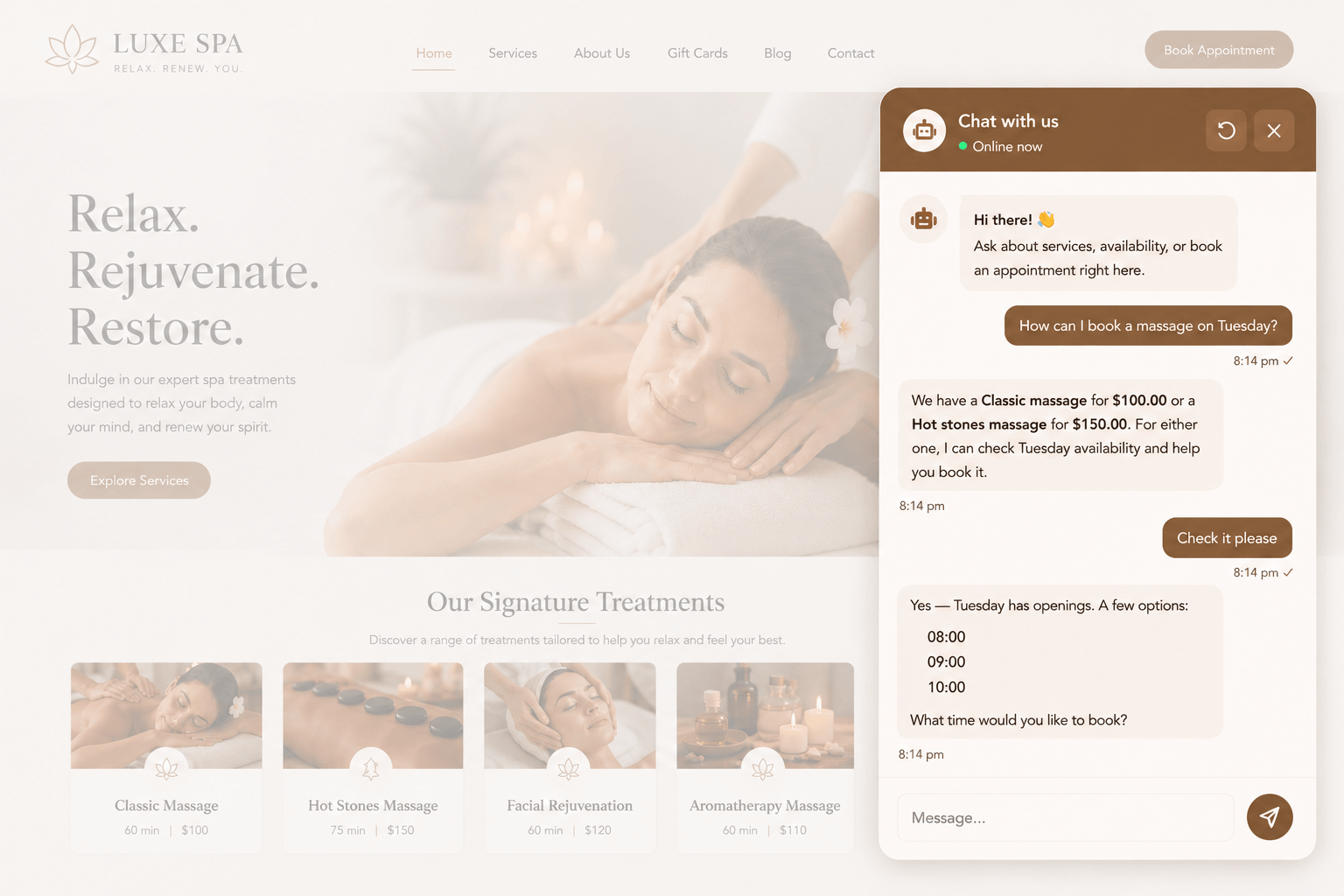
Bookly AI Assistant lets customers book appointments through a chat instead of a step-by-step booking form.
They can ask about services and staff, check availability, select extras, and create an appointment in one conversation.
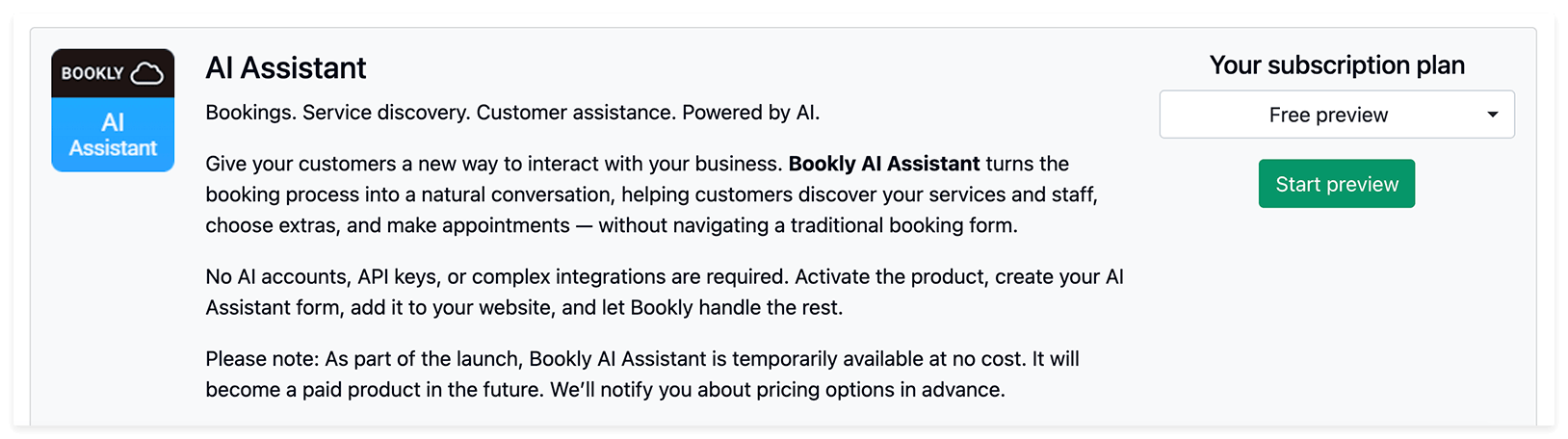
The Assistant uses your existing Bookly configuration and works through Bookly Cloud. No separate AI provider accounts, API keys, or custom integrations are required.
This gives customers a simple 24/7 way to book directly on your website.
As part of the launch, Bookly AI Assistant is temporarily available at no cost. It will become a paid product in the future. We’ll notify you about pricing options in advance.
What can AI Assistant do?
Bookly AI Assistant helps customers:
- Learn about available services and staff members
- Check available dates and time slots
- Select a suitable time slot
- Add extras to their booking
- Create an appointment directly in the chat
Currently, Bookly AI Assistant is compatible only with the Service Extras (Add-on). Other Bookly add-ons are not supported yet, but we plan to expand compatibility in future updates.
Please note that the AI Assistant does not currently include a payment step. All appointments created through the AI Assistant will have the Default appointment status, regardless of the selected payment method.
How to set up AI Assistant
Getting started requires only a few steps:
1. Activate AI Assistant in your Bookly Cloud account.
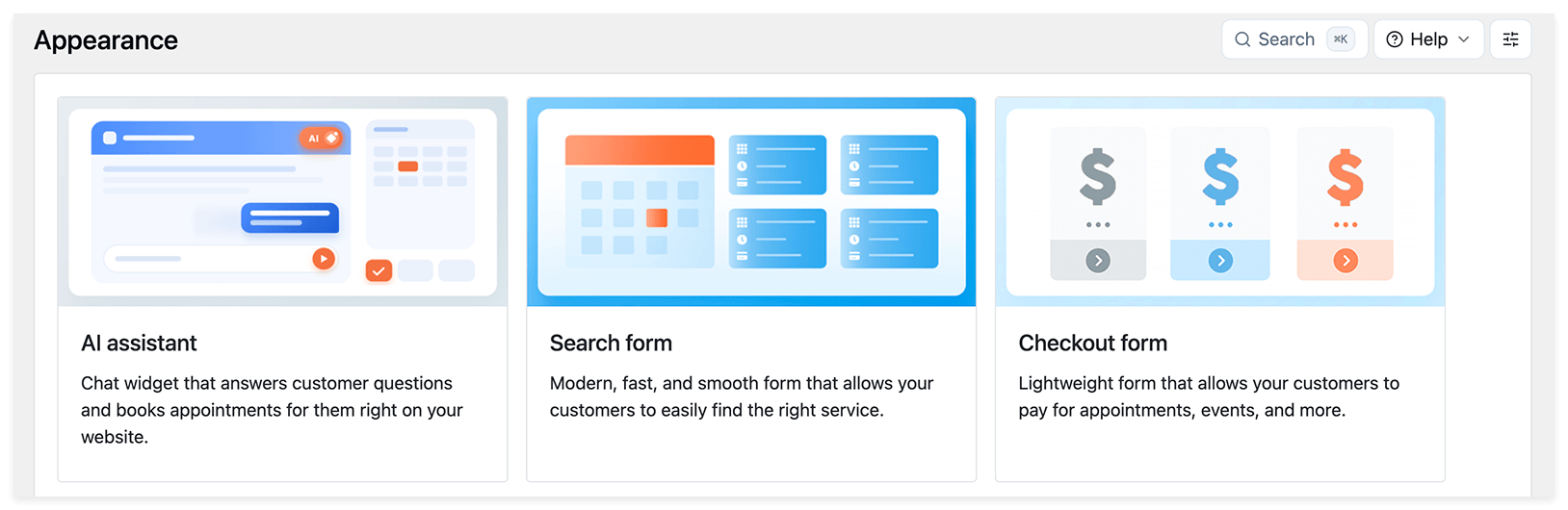
2. In Bookly, go to Appearance → AI Assistant and create a new form.
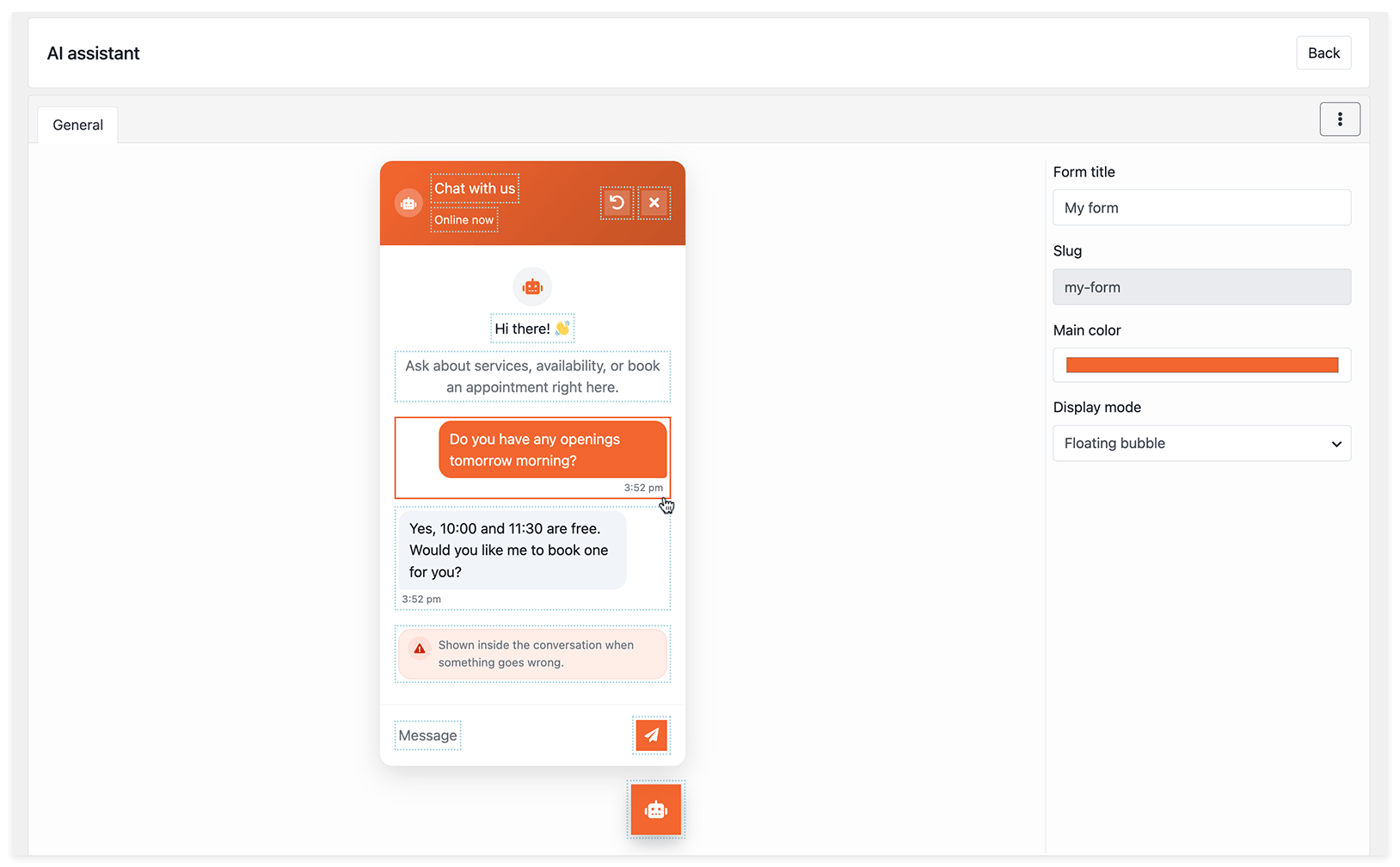
3. Configure the form appearance and text, then save your changes.
4. Click Back to return to the list of forms. Then copy the form shortcode and paste it into the desired page on your website.
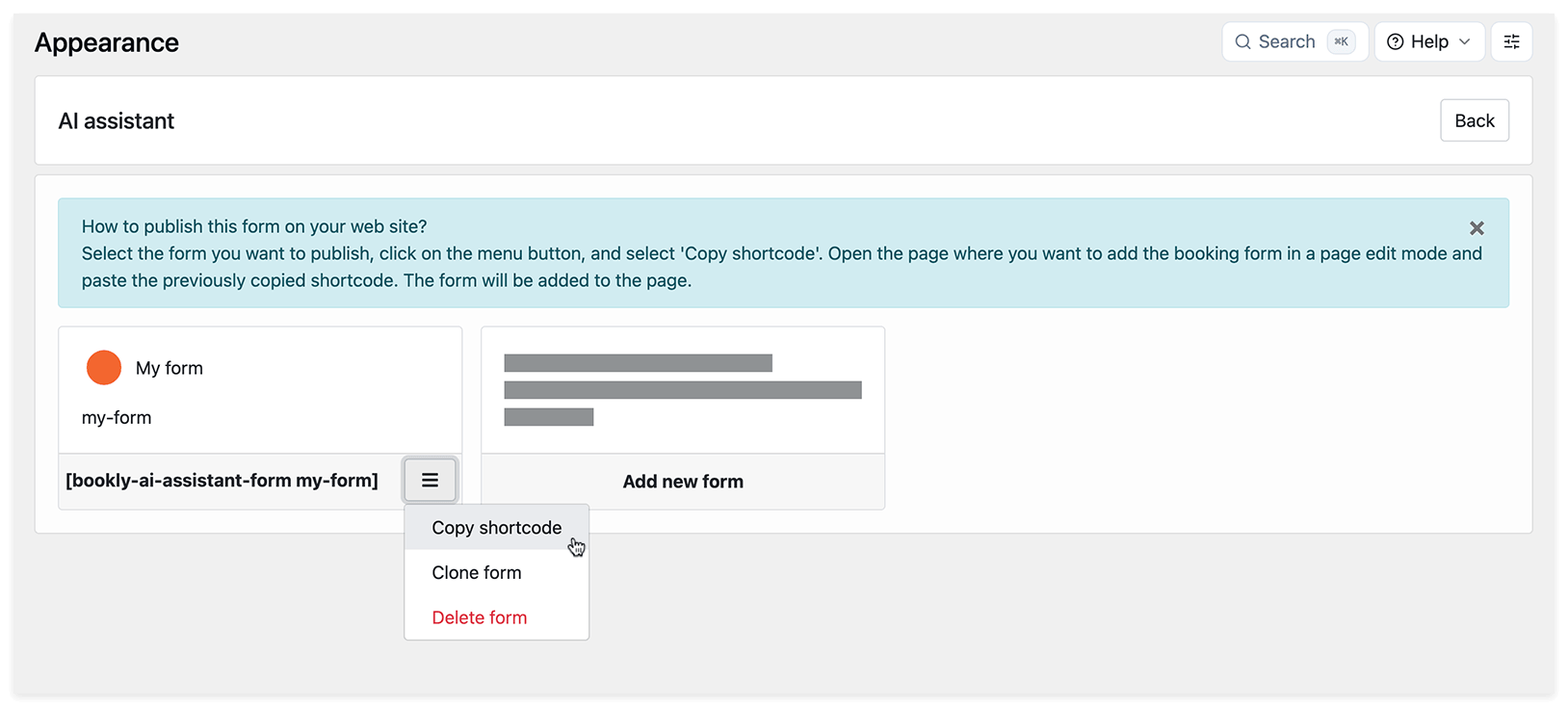
Your AI Assistant is now ready to interact with customers and accept bookings.
Display modes
AI Assistant can appear on your website in two modes:
Embedded
The chat is displayed directly in the selected area of the page. Use this mode for dedicated booking, service, or contact pages.
Floating bubble
The Assistant appears as a button at the bottom of the screen. Visitors can open the chat while browsing your website, without taking up space in the page content.
Form customization
You can customize the AI Assistant form to match your website and communication style.
Form title — the title shown in the chat interface
Welcome message — the first message customers see when they open the chat
Error messages — messages shown when the Assistant cannot complete a request or an error occurs
Interface texts and tooltips — labels, hints, and other chat interface text