Notifications: Overview
Bookly allows you to automatically notify both customers and staff members about appointments.
Notifications can be:
- Triggered by an event (e.g., booking created, approved, or cancelled)
- Scheduled (e.g., reminders before an appointment)
Notification Channels
Bookly supports multiple notification channels:
After installation, Bookly provides a set of ready-made notification templates. You can edit or delete existing templates, create custom notifications and assign them to specific services.
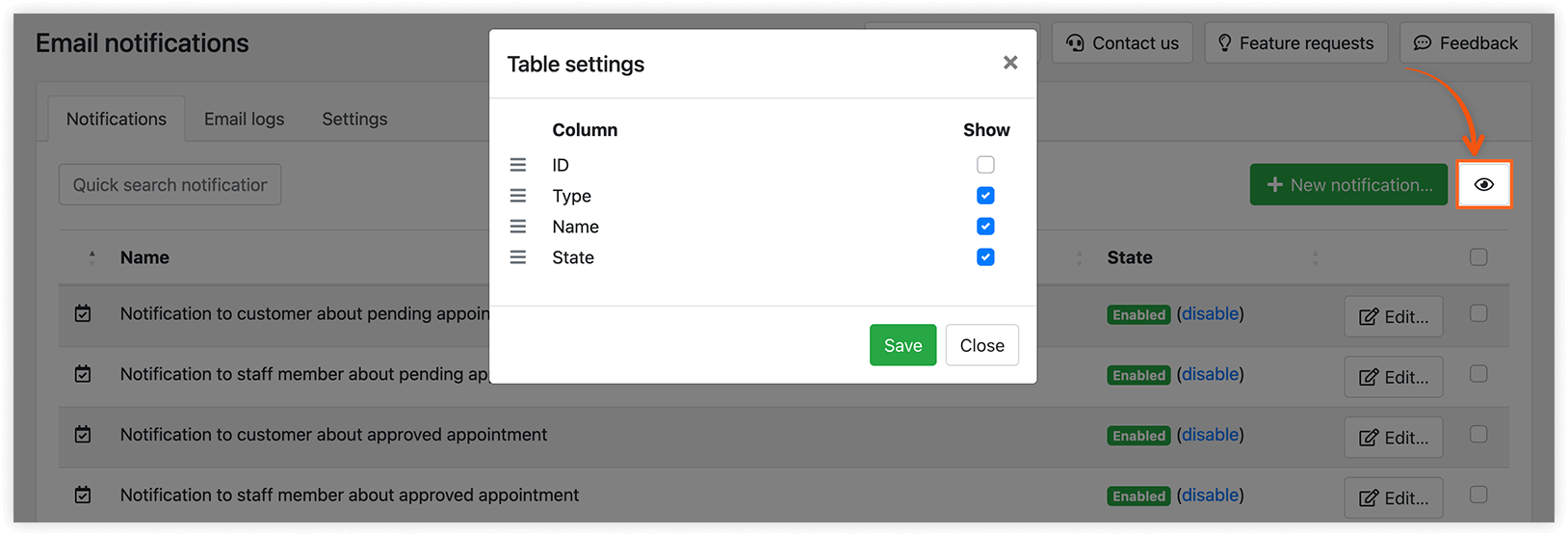
Table settings
In the Email Notifications section, you can customize how the table is displayed.
- Click the eye icon (top right) to choose visible columns.
- Drag and drop columns to rearrange them.
Event-Based Notifications (Instant)
| Name | Recipient | Trigger | Channel |
| New booking notification | Client, Staff, Admin | Sent when a new appointment is created (pending or approved) | Email / SMS |
| Notification about appointment status change | Client, Staff, Admin | Sent when an appointment status changes (cancelled, rejected, or completed) | Email / SMS |
| New WordPress user details | Client or Staff | Sent when a customer account is created; includes login credentials | Email / SMS |
| Contact verification (email/phone) | Client | Sent when contact verification is enabled during booking | Email / SMS |
⚠️ Important
If a customer enters an incorrect email address during booking, they will not receive notifications.
To troubleshoot:
- Check your mailbox for “delivery failed” messages
Scheduled Notifications (Reminders)
| Name | Recipient | Timing | Channel |
| Appointment reminder | Client, Staff | Sent 24h before or same day of the appointment (configurable) | Email / SMS |
| Customer’s last appointment | Client | Follow-up / Thank you sent after the appointment is completed | Email / SMS |
| Customer’s birthday greeting | Client | Sent on the client’s birthday | Email / SMS |
| Staff next day agenda | Staff | Sent daily at specified time |
👉 Important: Scheduled notifications require CRON configuration.
DEMO VIDEO TUTORIALS MAIN BOOKLY SETTINGS FAQ ADD-ONS
RELATED
Email Setup – general settings required to enable any of the email types.
Text Message (SMS) Setup – set up your Bookly SMS account needed to send out text messages.
GOOD TO KNOW
Online Access to Bookings – clients can review and cancel bookings online, too.
Staff Access to WP Dashboard – staff can access a simplified admin panel with their calendar.