Payment Options
There are over 10 online payment options available for your Bookly Pro plugin. After purchasing, installing, and activating the required payment gateway add-on, go to Settings > Payments and input your credentials. The offline payment option can also be enabled in this section.
| Integration | Availability |
|---|---|
| Stripe Payments | Included in the free version of Bookly |
| WooCommerce | Included in Bookly PRO |
| PayPal Express Checkout | Included in Bookly PRO (deprecated by PayPal since January 1, 2017) |
| Square Payments | Add-on for Bookly PRO |
| PayPal Payments Standard | Add-on for Bookly PRO |
| PayPal Checkout | Add-on for Bookly PRO |
| Stripe | Add-on for Bookly PRO |
| Authorize.net (including Akamai) | Add-on for Bookly PRO |
| Mollie (including iDEAL) | Add-on for Bookly PRO |
| PayU Latam | Add-on for Bookly PRO |
| 2Checkout | Add-on for Bookly PRO |
| PayUbiz | Add-on for Bookly PRO |
In Settings > Payments, you can configure the display order of payment options on the front-end (Payment step in a booking form). Use the drag-and-drop option to move the payment options up or down the list.
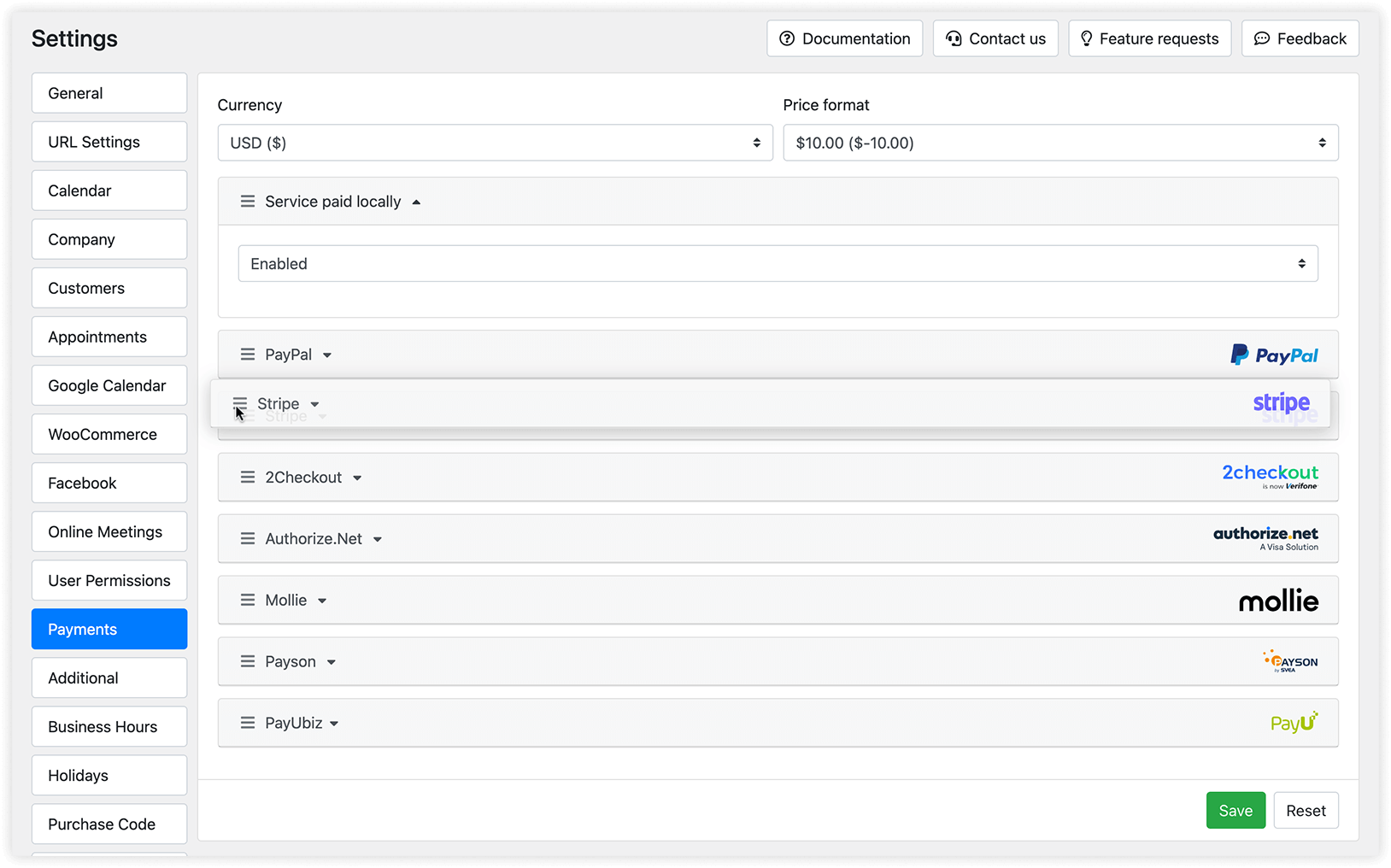
Additionally, you have the flexibility to choose specific payment options for each staff member. For instance, you can disable the Local payment option for employees who exclusively offer virtual appointments.
Payments List
In the Payments section, you can access a comprehensive list that details all pending and completed payments received through any payment method for any service or provider.
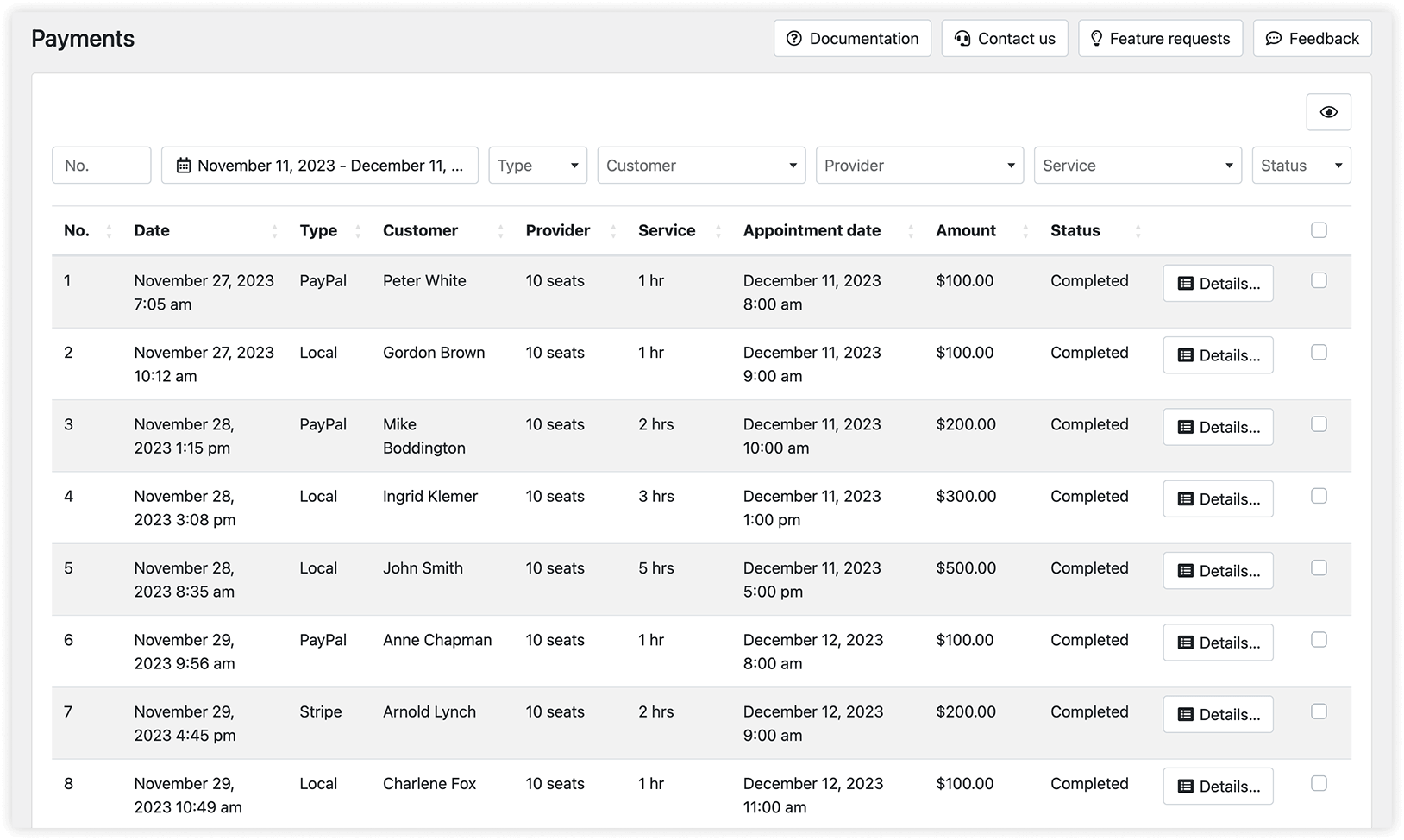
Table settings
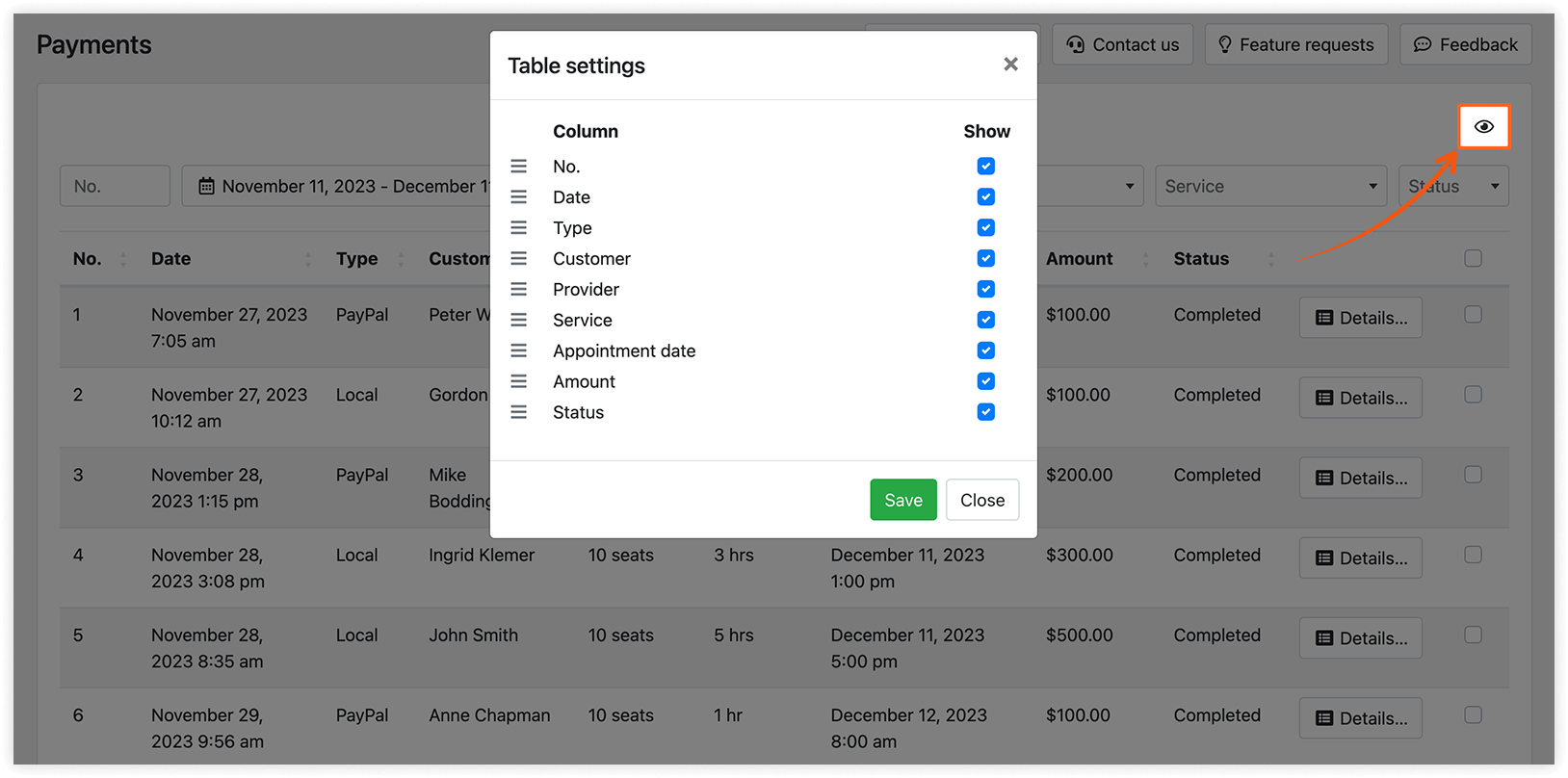
Click on the eye icon in the upper right corner of the page to select the columns you want to display in the Payments table. Reorder the columns using the drag & drop option.
PayPal Express Checkout
This option is available with Bookly PRO installed and activated.
To set up integration, do the following:
1. Log in to your PayPal account.
2. Go to your Account settings, select Account access > click Update next to API access.
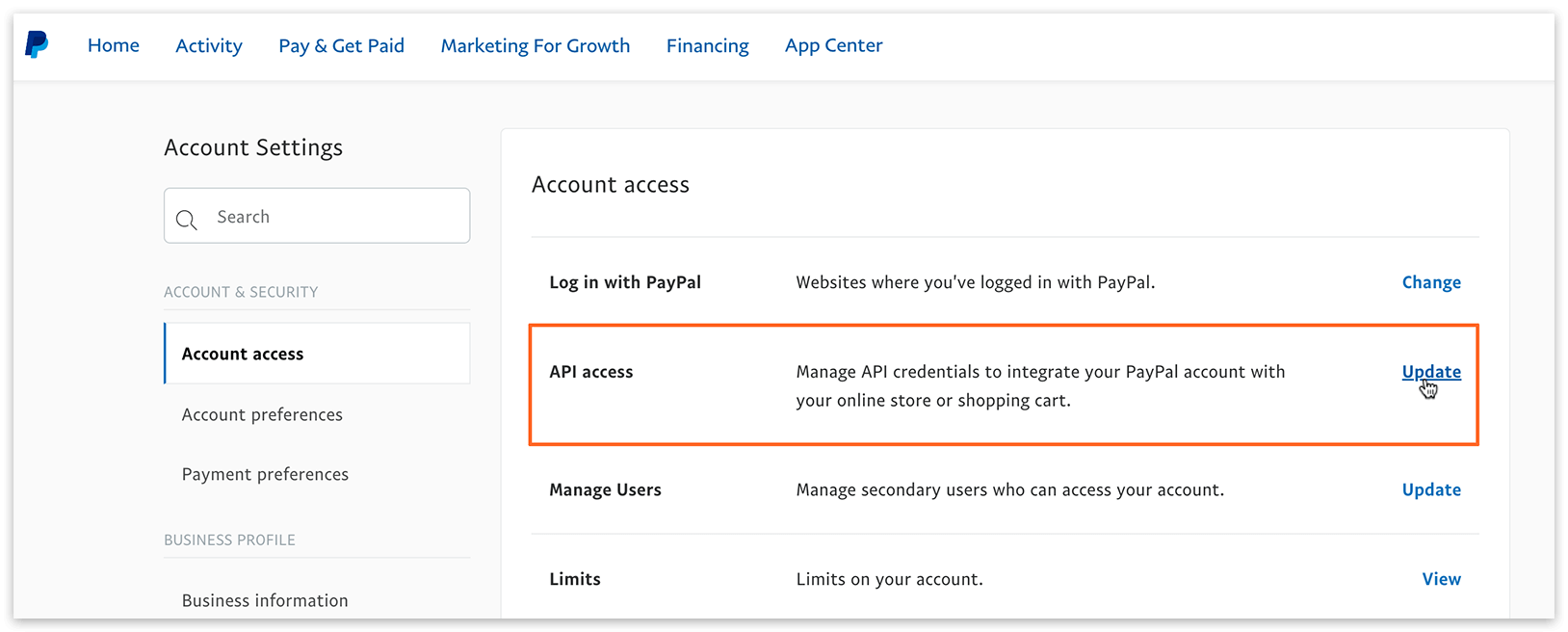
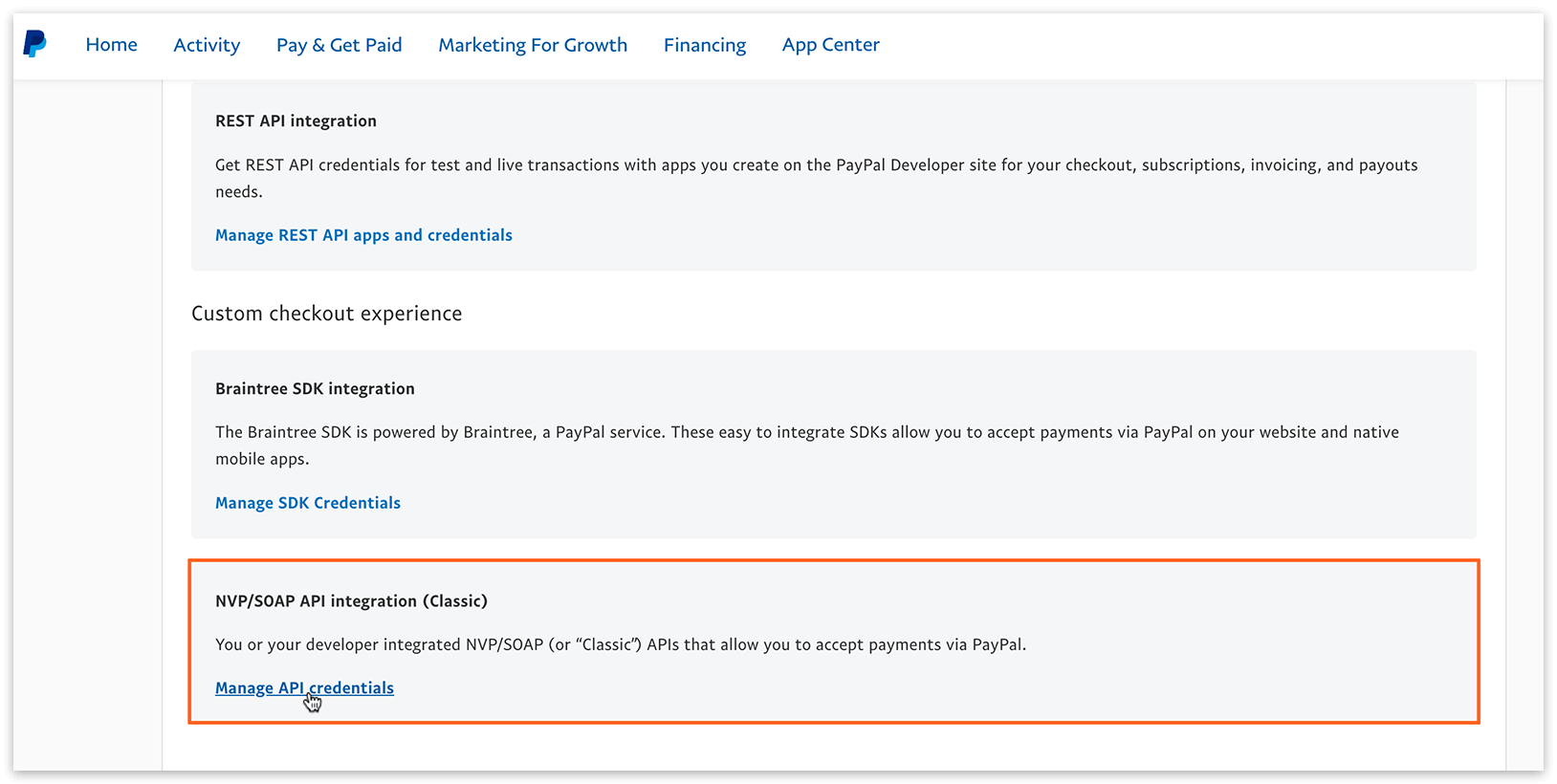
3. Click Manage API credentials, copy API Username, API Password and Signature. Paste them in the relevant fields in Settings > Payments > PayPal Express Checkout.
DEMO VIDEO TUTORIALS MAIN BOOKLY SETTINGS FAQ ADD-ONS
RELATED
Deposit Payments (Add-on) – divide payment into two instalments.
GOOD TO KNOW
Coupons (Add-on) – a deduction in absolute numbers or a percentage of appointment’s price.